

 Platform
 W&B Models
 W&B Weave
 W&B Inference
 W&B Training
 Release Notes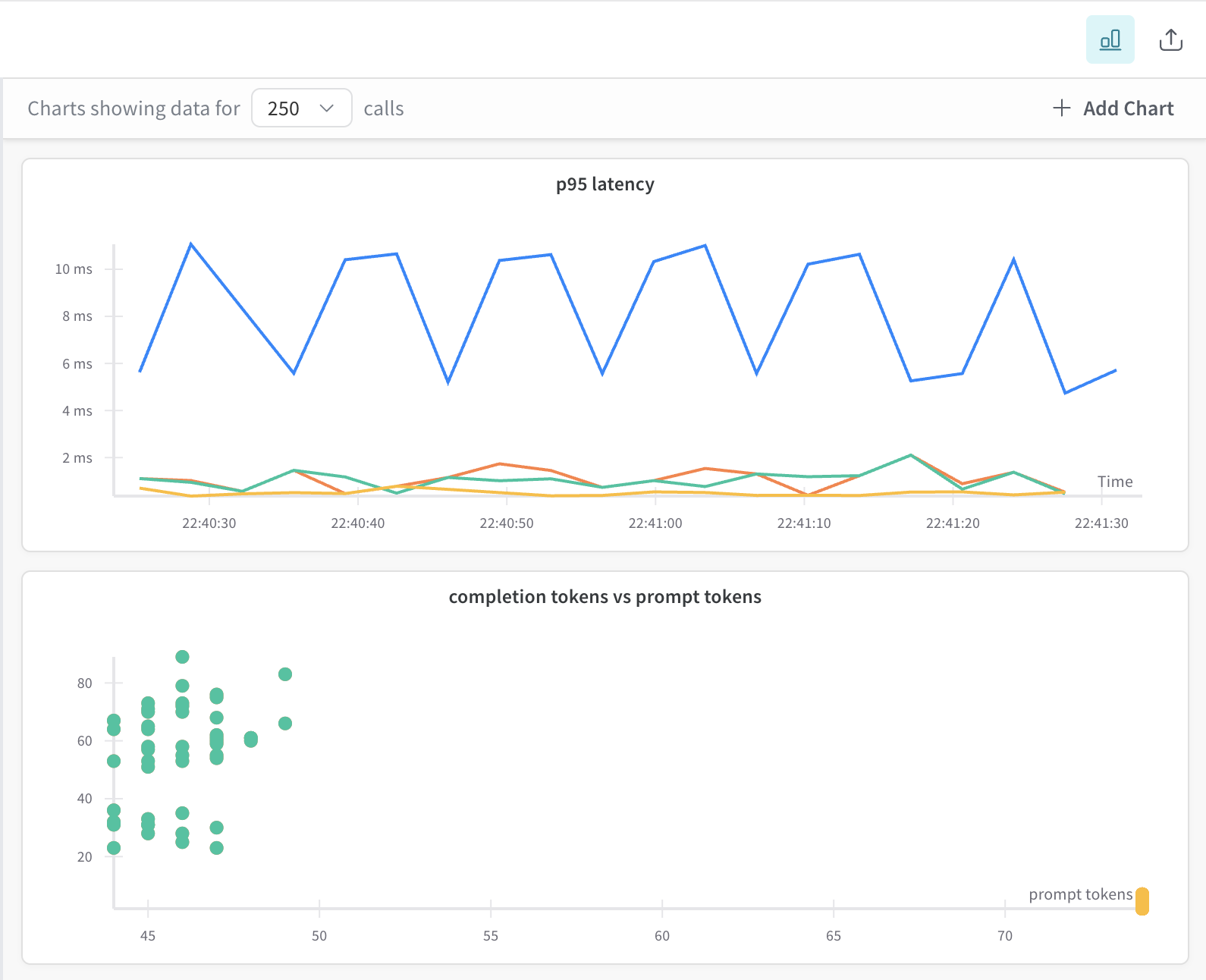
Get started
- Navigate to your project’s Traces page.
- (Optional) Select Filter to filter selected traces (e.g. by datetime or operation).
-
In the upper right hand corner of the Traces view, click the Show Metrics icon to open the trace plots side pane.
- View the default trace plots.
- Create a custom trace plots.
- Charts update dynamically based on your trace filters and selections.
Default trace plots
When you first open the trace plots panel, Weave auto-generates a few trace plots based on your available project trace data:- Bar chart (cost or latency grouped over time bins)
- Line chart (latency over time)
- Scatter plot (e.g. prompt tokens vs. completion tokens)
- Hover for tooltips
- Drag to zoom
- Double-click to reset
- Click points in scatter plots to open a specific trace
Create a custom trace plot
You can also create custom trace plot. To create a custom trace plot, do the following:-
From the trace plots side pane, click ➕ Add Chart .
-
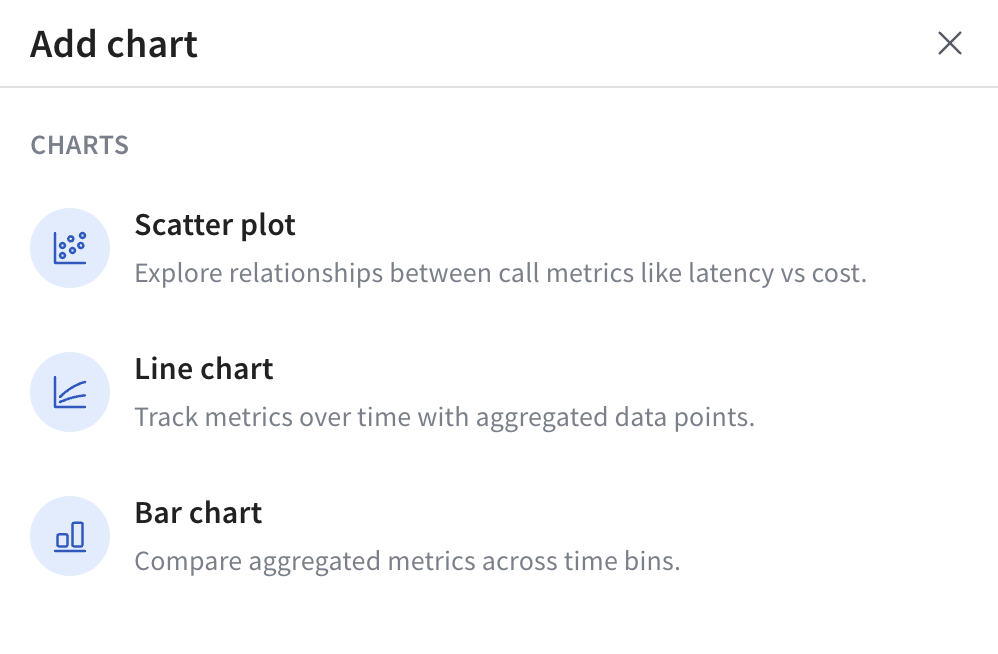
In the pop-up, select one of the available trace plot types:
- For the selected trace plot type, configure your trace plot. For information on configuration options by trace plot type, see Trace plot settings by plot type.
- Click Save chart to save your chart.