

 Platform
 W&B Models
 W&B Weave
 W&B Inference
 W&B Training
 Release Notes
What you’ll learn:
This guide shows you how to:- Import and configure Weave in your code
- Use
weave.opdecorator to track your code - View traces in the Weave UI
Prerequisites
- A W&B account
- Python 3.8+ or Node.js 18+
- Required packages installed:
- Python:
pip install weave openai - TypeScript:
npm install weave openai
- Python:
- An OpenAI API key set as an environment variable
Log a trace to a new project
To begin tracking your code and logging traces to Weave:- Import the
weavelibrary into your code. - Call
weave.init('your_wb_team/project_name')in your code to send tracking information to your W&B team and project. If you do not set a team, the traces are sent to your default team. If the specified project does not exist in your team, Weave creates it. - Add the
@weave.op()decorator to specific functions you want to track. While Weave automatically tracks calls to supported LLMs, adding the Weave decorator allows you to track the inputs, outputs, and code of specific functions. The decorator uses the following syntax in TypeScript:weave.op(your_function)
- Python
- TypeScript
extract_dinos function, Weave outputs links to view your traces in the terminal. The output looks like this:
See traces of your application in your project
Click the link in your terminal or paste it into your browser to open the Weave UI. In the Traces panel of the Weave UI, you can click on the trace to see its data, such as its input, output, latency, and token usage.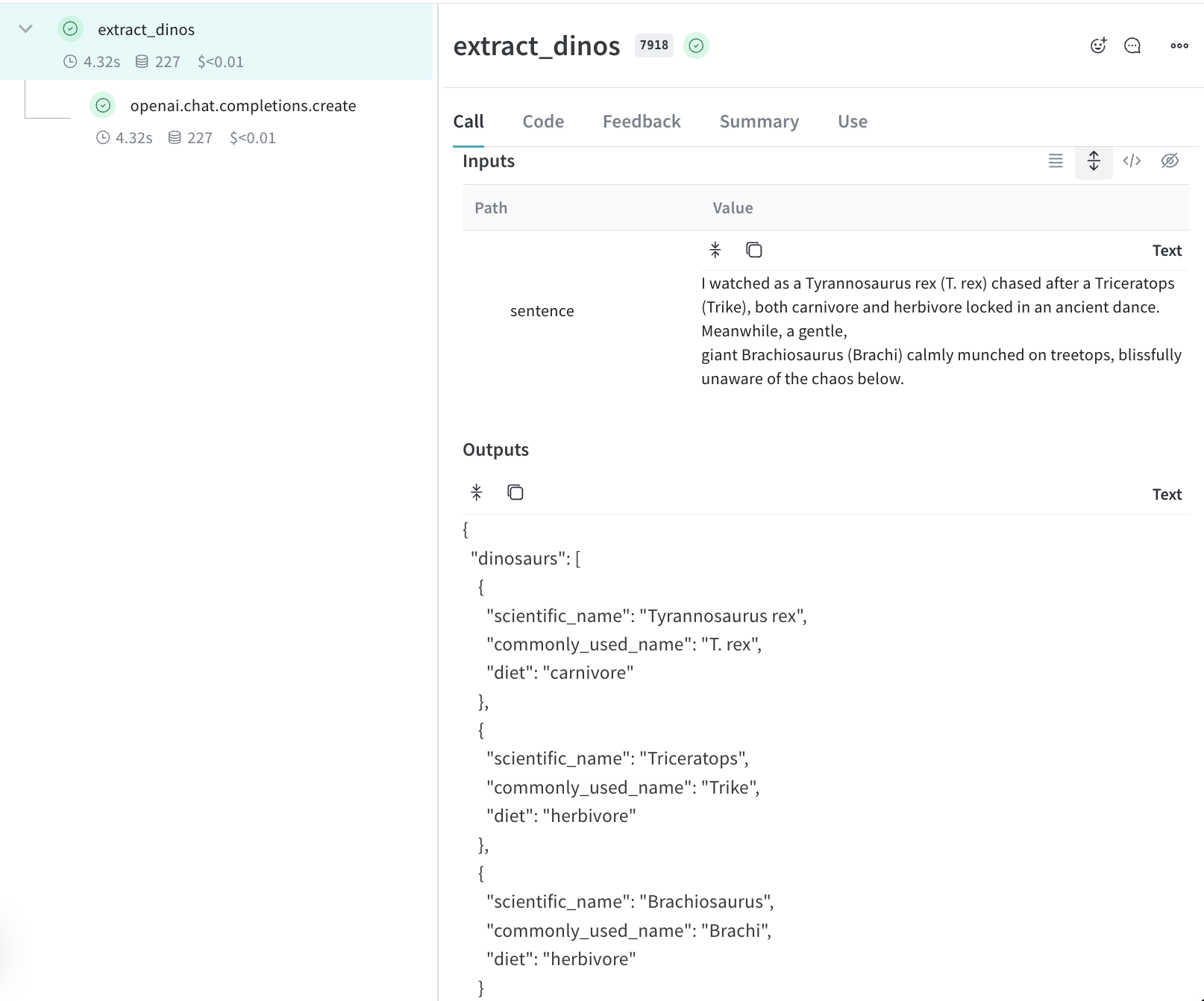
Learn more about Traces
- Learn how to decorate your functions and retrieve call information.
- Try the Playground to test different models on logged traces.
- Explore integrations. Weave automatically tracks calls made to OpenAI, Anthropic and many more LLM libraries. If your LLM library isn’t currently one of our integrations you can track calls to other LLMs libraries or frameworks easily by wrapping them with
@weave.op().